MCP server for AI coding agents
Connect Claude Code, Cursor, VS Code and other AI coding agents to AccessibilityBrief with MCP: read accessibility scans, fetch fix prompts, fix issues in your code and rescan. Pro and Agency plans.
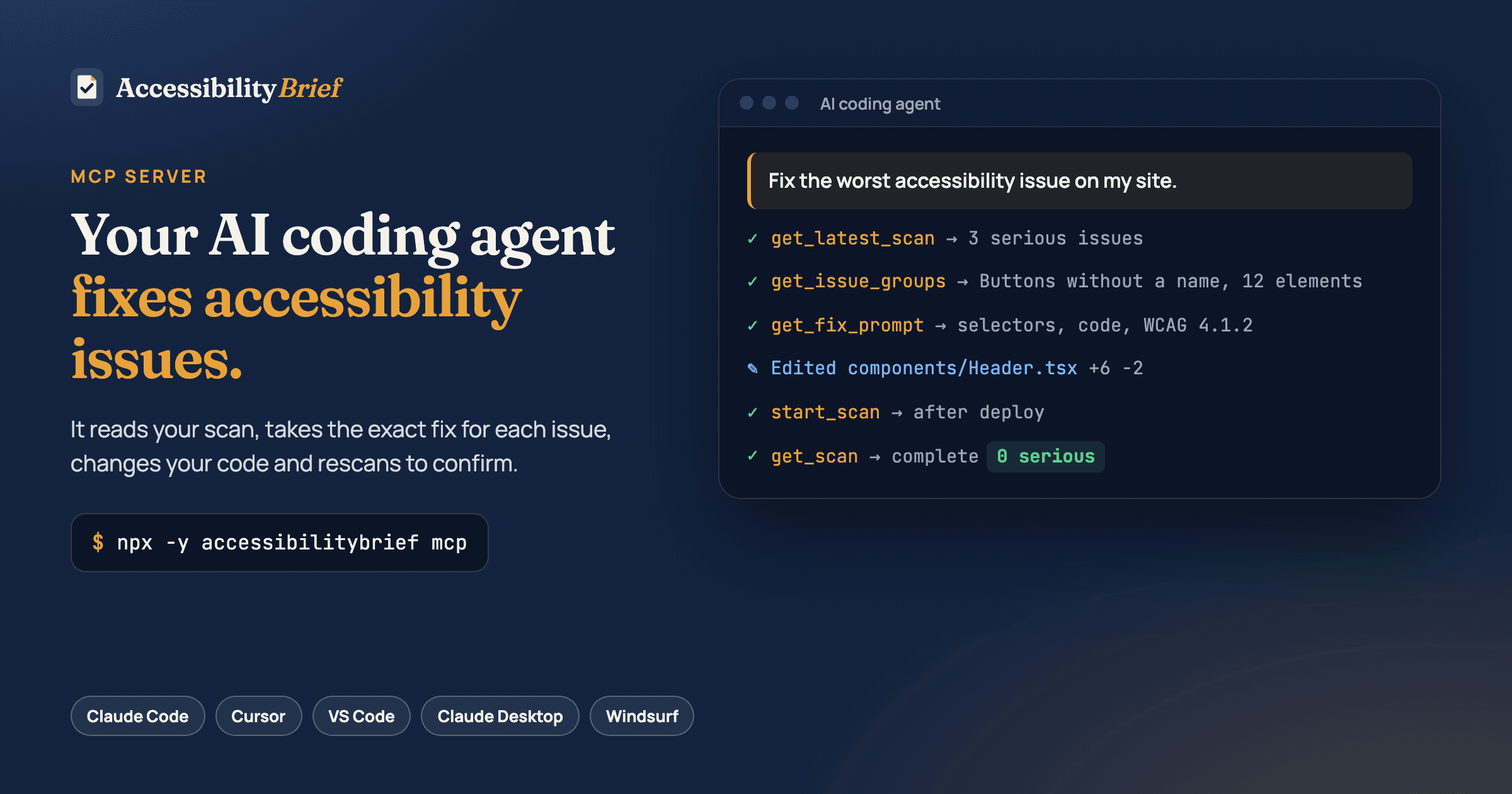
The Model Context Protocol (MCP) is an open standard that lets AI coding agents use outside tools. The AccessibilityBrief MCP server connects agents such as Claude Code, Cursor, VS Code with GitHub Copilot and Claude Desktop to your workspace. The agent can read your latest scan, take the exact fix for each issue, change your code and start a rescan to confirm.
Requirements
- Node.js 18.17 or newer.
- A Pro or Agency plan.
- An API key from Settings → API and integrations. Give it the
readscope,scanto let the agent start scans, andwriteto let it mark issues. - The site must already be added to your workspace.
The server is part of the accessibilitybrief package on npm and runs on your computer with npx -y accessibilitybrief mcp. Your AI tool starts it; you don't run it yourself.
Keep the API key out of files you commit to git. Use your editor's user-level settings, or VS Code's prompt for the key shown below.
Claude Code
claude mcp add accessibilitybrief --env ACCESSIBILITYBRIEF_API_KEY=ab_live_… -- npx -y accessibilitybrief mcpCursor
Add this to ~/.cursor/mcp.json (all projects) or .cursor/mcp.json in one project:
{
  "mcpServers": {
    "accessibilitybrief": {
      "command": "npx",
      "args": ["-y", "accessibilitybrief", "mcp"],
      "env": { "ACCESSIBILITYBRIEF_API_KEY": "ab_live_…" }
    }
  }
}VS Code (GitHub Copilot)
Add this to .vscode/mcp.json. VS Code asks for the key the first time and stores it securely, so it never lands in the file:
{
  "inputs": [
    { "type": "promptString", "id": "accessibilitybrief-key", "description": "AccessibilityBrief API key", "password": true }
  ],
  "servers": {
    "accessibilitybrief": {
      "type": "stdio",
      "command": "npx",
      "args": ["-y", "accessibilitybrief", "mcp"],
      "env": { "ACCESSIBILITYBRIEF_API_KEY": "${input:accessibilitybrief-key}" }
    }
  }
}Claude Desktop, Windsurf and other MCP clients
Most clients use the same mcpServers format. In Claude Desktop it goes in Settings → Developer → Edit config; in Windsurf in ~/.codeium/windsurf/mcp_config.json:
{
  "mcpServers": {
    "accessibilitybrief": {
      "command": "npx",
      "args": ["-y", "accessibilitybrief", "mcp"],
      "env": { "ACCESSIBILITYBRIEF_API_KEY": "ab_live_…" }
    }
  }
}Any other client: the command is npx, the arguments are -y accessibilitybrief mcp, and the key goes in the environment variable ACCESSIBILITYBRIEF_API_KEY.
Tools
| Tool | What the agent can do |
|---|---|
| list_sites | List the sites in your workspace with their latest score. |
| get_latest_scan | Read the latest finished scan of a site: score, issue counts by severity and the change since the previous scan. |
| get_issue_groups | List issue groups, worst first, with the affected elements, WCAG criteria and fix steps. |
| get_fix_prompt | Fetch the fix prompt for one issue group, or the whole site, with selectors, code and the expected result. |
| start_scan | Start a new scan, for example after a fix is deployed. Uses one manual scan of your plan. |
| get_scan | Check a scan's progress and read its result when it is finished. |
| mark_issue_status | Mark issues as false positive, won't fix or needing a manual check, with a note. |
Try it
Ask your agent, for example:
Get the latest AccessibilityBrief scan for my site, take the worst issue group, fetch its fix prompt and fix it in this repo. Then tell me what you changed.After you deploy the change, ask it to start a scan and report the new result. Scans check your live or staging site, not your local files, so a fix shows up only once it is deployed.
Good to know
- The agent changes your code; nothing is injected into your website.
- Fixed issues are detected by the next scan. The agent can't mark an issue as fixed itself.
- Automated testing finds only part of the WCAG issues. Check the result with a keyboard and a screen reader too.
- If a tool answers "The API key was not accepted", check the key in your MCP settings and that it has the scope the tool needs.
Still stuck? Write to us and we will help. Contact support